

Completing and Monitoring the Portfolio
Recording and Signing Off Entries
Detailed instructions for recording different types of entries can be found in each portfolio.
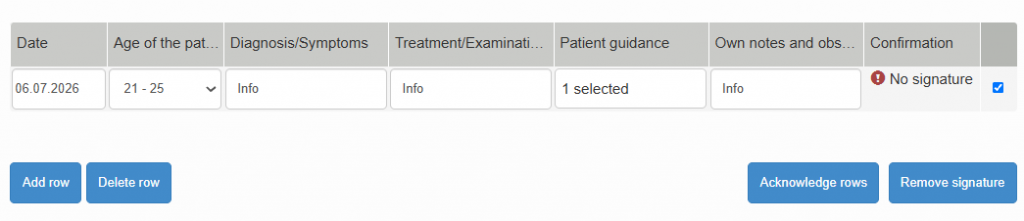
After you have completed the information for an entry, ask your clinical supervisor or teacher to sign it off as completed. The sign-off process is as follows:
- Select the row to be signed off from the right-hand side of the table.
- Click Sign Off Rows.
Note: Multiple rows can be signed off at the same time by selecting all the relevant rows.
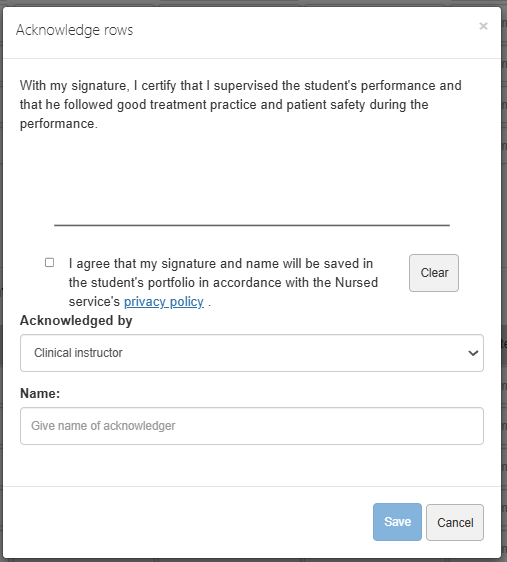
- Select either Clinical Supervisor or Teacher as the signatory, depending on the situation.
- Enter the signatory’s name.
- Ask the signatory to review the privacy notice and provide consent for their name and signature to be stored.
- Ask the supervisor or teacher to provide their signature in the designated field.
- Click Save.
Once signed off, rows become locked and can no longer be edited. If necessary, the sign-off can be removed, after which the row becomes editable again and must be signed off once more.
