

Using the Portfolio
If your educational institution uses Workseed, you can access the NursED environment directly through Workseed.
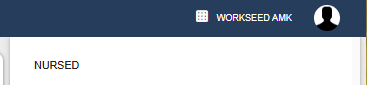
To switch to the NursED environment log in to Workseed. Open the environment menu located in the upper-right corner of the screen. Select NursED from the available environments.
You will then be transferred to the NursED environment, where you can access and manage shared student portfolios.
If your educational institution does not use Workseed, log in to NursED using your own username and password.
After logging in to NursED, you will see all portfolios that have been shared with you in a single view. If desired, you can filter and sort the portfolios using the filters located at the top of the page.
This allows you to quickly locate specific students or portfolios and efficiently monitor student progress across all shared portfolios.
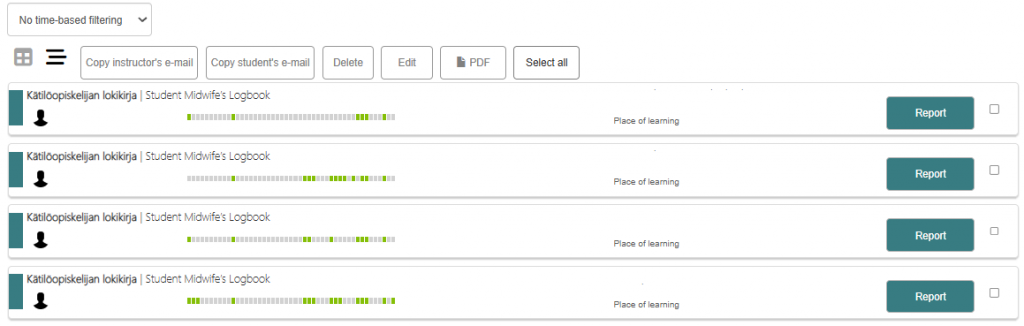
To review a student’s portfolio progress, click Report on the relevant portfolio row.
Within the report, you can view:
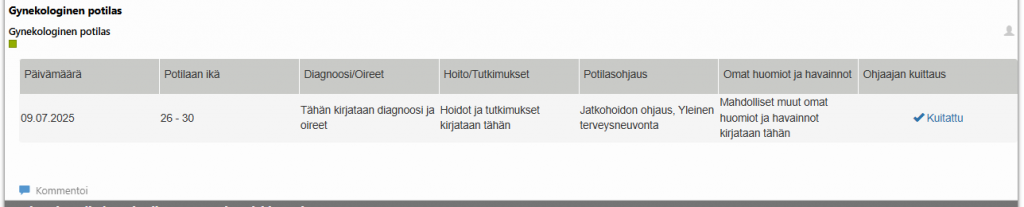
- The entries made by the student
- Related sign-offs and approvals
You can provide feedback to the student by:
- Clicking Comment next to the relevant entry.
- Entering your comment in the text field that appears.
- Clicking Save.
Your comments will be visible to the student through the portfolio report, allowing ongoing communication and feedback regarding their progress and completed activities.
At the beginning of each section, you can also view a summary of the student’s progress.
For example, in the illustration below, the student has not yet recorded or received sign-off for any activities in that section. As the portfolio progresses, the number of completed activities increases, and the progress bar provides a visual representation of the student’s advancement.
This overview allows you to quickly assess the student’s current status and determine how much of the section has been completed without reviewing individual entries in detail.
